
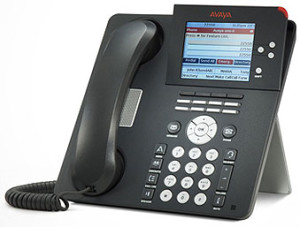
Avaya IP Office Phone System: A Guide for UK Businesses
The Avaya IP Office phone system is a business communications platform designed to bring desk phones, softphones and other calling tools together. It has been used by organisations ranging from small offices to larger, multi-site businesses that need features such as call routing, voicemail and conferencing.
For businesses considering an Avaya IP Office system, the right solution depends on the organisation’s size, working practices, existing equipment and support requirements. This guide explains how the system works, what to consider before choosing it and why expert advice can be valuable.
What is Avaya IP Office?
Avaya IP Office is a unified communications system centred on business telephony. Depending on the system’s configuration, software version and licences, it can support traditional telephone connections, IP phones and software-based calling. This flexibility can help businesses manage calls across offices and, in some cases, support staff working remotely.
The system is configured around the needs of each organisation. A small business may require straightforward call handling and voicemail, while a larger operation may need features such as call queues, multiple departments or links between different locations.
Common features
Features vary according to the installed version, licences and equipment, but an Avaya IP Office system may include:
- Call routing: Direct incoming calls to the right person, team or department.
- Auto-attendant: Offer callers a menu of options, helping them reach the appropriate destination.
- Voicemail: Let staff receive and manage messages when they cannot answer a call.
- Hunt groups and call queues: Distribute calls across teams, which can be useful for sales, reception or customer service.
- Conference calling: Support conversations involving several participants, subject to the system configuration.
- Softphone options: Allow users to make or receive calls through supported software on a computer or mobile device.
- Multi-site telephony: Connect offices so that calls can be managed across locations.
- Call reporting: Provide information that may help managers review call activity and service levels.
Potential benefits for businesses
One of the main advantages of a business phone system is the ability to manage calls consistently. Features such as call routing and hunt groups can help ensure that calls are directed to the right team, while voicemail and call-handling options can support staff when they are busy or away from their desks.
IP-based calling can also give businesses more flexibility in how they connect users and locations. Depending on the setup, employees may be able to use desk phones, computers or other supported devices. This can be helpful for organisations with hybrid working arrangements, although remote access should be planned carefully and secured appropriately.
For businesses already using Avaya equipment, retaining or updating an existing IP Office installation may also make use of established handsets and infrastructure. Whether this is practical depends on the system’s age, condition, software version and the availability of compatible support.
What to consider before choosing a system
Before investing in, upgrading or maintaining an Avaya IP Office phone system, consider the following:
- Business requirements: Identify how many users you need, how calls should be handled and whether you need features such as queues or remote calling.
- System version and licensing: Features and compatibility can vary. Confirm what your current configuration supports and what additional licences may be required.
- Network readiness: IP telephony relies on a suitable network. Internet connectivity, local network capacity and call quality should be assessed before deployment.
- Security: Remote access and connected devices need appropriate security controls, updates and administration.
- Integration: Check whether the system can work with your existing business tools and workflows.
- Support and future planning: Review maintenance arrangements, replacement parts, software support and the longer-term direction of your communications estate.
- Total cost: Consider installation, licences, handsets, connectivity, support and any future upgrade costs—not only the initial purchase price.
Installation and ongoing support
A successful installation begins with understanding how the business handles calls. A specialist can assess user requirements, network conditions, existing equipment and call flows before recommending a suitable configuration. This can help avoid common issues, such as poorly designed menus, insufficient network capacity or licences that do not match the intended use.
Ongoing support is equally important. Regular checks can help identify configuration problems, review capacity and keep the system aligned with changing business needs. Businesses should also know who to contact if users experience faults or need changes to extensions, call routing or voicemail.
Is Avaya IP Office right for your business?
Avaya IP Office may suit organisations looking for a configurable business telephony platform, particularly where an existing system is already in place. However, the best choice depends on your requirements, budget, current infrastructure and plans for the future. A hosted or cloud-based phone service may be worth comparing if you want to reduce reliance on on-site equipment or change how staff connect to the phone system.
Before making a decision, review your current setup and compare the practical costs and capabilities of continuing with, upgrading or replacing it. A qualified communications provider can help assess the options and explain what is compatible with your existing equipment.
Conclusion
The Avaya IP Office phone system offers a range of business calling and call-management capabilities, with options that depend on its configuration and licensing. For UK businesses, careful planning around network readiness, security, support and future requirements is essential. With the right assessment, organisations can determine whether an existing Avaya system remains suitable or whether another approach would better meet their needs.
9 Key Benefits of the Avaya IP Office Phone System
- Flexible call routing
- Supports desk phones and softphones
- Useful voicemail features
- Call queues for busy teams
- Options for multi-site businesses
- Can support hybrid working
- Configurable to business needs
- Call reporting options
- May work with existing Avaya equipment
Avaya IP Office: Costly Licensing and Upgrades, Specialist Setup and Legacy Compatibility Limitations
- Licensing and upgrades can be costly.
- Setup may require specialist support.
- Older systems may have limited compatibility.
Flexible call routing
Avaya IP Office offers flexible call routing to help direct incoming calls to the right person or team. Calls can be routed using options such as extension numbers, hunt groups, call queues and automated menus, making it easier to manage busy periods and ensure callers reach the appropriate department. Routing can be tailored to your organisation’s needs, helping create a smoother experience for both callers and staff.
Supports desk phones and softphones
Avaya IP Office can support both traditional desk phones and softphones, giving employees flexibility in how they make and receive business calls. Staff can use a desk phone in the office or, where the system is configured to allow it, a softphone on a computer or mobile device. This can make it easier to support different working styles, including hybrid teams, while keeping business calling connected through one system.
Useful voicemail features
Avaya IP Office offers useful voicemail features that help businesses stay responsive when staff cannot answer calls. Callers can leave messages for individuals or teams, while employees can retrieve and manage voicemail according to the system’s configuration. This makes it easier to keep track of enquiries, follow up promptly and avoid missing important messages during busy periods or outside normal working hours.
Call queues for busy teams
Call queues help busy teams manage high volumes of incoming calls by placing callers in a queue until an adviser is available, rather than leaving them unanswered or sending them straight to voicemail. Calls can be directed to the appropriate team, helping staff handle enquiries in an organised way and giving callers a clearer experience while they wait. Depending on the system’s configuration, queue announcements and estimated wait information may also be available.
Options for multi-site businesses
Avaya IP Office can be configured to support businesses operating across multiple sites, helping teams stay connected through a shared phone system. Depending on the setup, staff may be able to call colleagues at other locations using internal extensions, while calls can be routed to the right office or department. This can make communication easier to manage as a business grows, although the available features depend on the system configuration, licences and network.
Can support hybrid working
Avaya IP Office can support hybrid working by giving employees flexible ways to make and receive business calls, depending on the system’s configuration and licences. Staff may be able to connect through desk phones, supported softphone applications or mobile devices, helping them stay reachable whether they are in the office or working remotely. With suitable network access and security measures in place, businesses can maintain consistent call handling across different locations.
Configurable to business needs
Avaya IP Office can be configured to suit the way your business works, from setting up call routing and voicemail to organising departments, hunt groups and call queues. This flexibility helps create a phone system that matches your team’s size, customer service needs and day-to-day processes, with options that can be adjusted as your business changes. Available features depend on the system’s version, licences and configuration.
Call reporting options
Call reporting options: Avaya IP Office can provide call reports that help businesses understand how their phone system is being used. Depending on the system’s configuration and licences, managers may be able to review details such as call volumes, answer rates and missed calls. These insights can help identify busy periods, assess team performance and make informed decisions about staffing and call handling.
May work with existing Avaya equipment
One advantage of Avaya IP Office is that it may work with compatible Avaya equipment already in place, such as handsets and other system components. This can help businesses make better use of their existing investment and avoid replacing everything at once. Compatibility depends on the equipment, system version and configuration, so it’s worth checking these details with a qualified provider before planning an upgrade.
Licensing and upgrades can be costly.
One potential drawback of the Avaya IP Office phone system is the cost of licences and upgrades. Adding users or features, updating the system or replacing ageing equipment can require extra investment, and costs may vary depending on the configuration and support arrangements. Businesses should check which licences they need and consider ongoing maintenance and upgrade costs when budgeting.
Setup may require specialist support.
Setting up an Avaya IP Office phone system can be complex, particularly when configuring call routing, extensions, licences and network connections. Businesses may need specialist support to install the system correctly, integrate it with existing equipment and resolve technical issues. This can add to the initial cost and make future changes more difficult if in-house staff are unfamiliar with the platform.
Older systems may have limited compatibility.
Older Avaya IP Office systems may have limited compatibility with newer phones, software, business applications and network technology. This can make it harder to add features or integrate the system with current tools, and may require extra configuration, specialist support or equipment upgrades. Before extending an older installation, check that the components you need are supported by its specific version.
Tags: auto-attendant, avaya ip office, avaya ip office phone system, business phone system, business telephony, call queues, call reporting, call routing, cloud-based phone system, communications provider, conference calling, hosted phone service, hunt groups, ip phones, ip telephony, multi-site telephony, network readiness, phone system installation, phone system support, phone system upgrade, remote calling, softphones, system licensing, telephony security, uk businesses, unified communications, voicemail